Getting started · 5 min read
How to add website analytics to your site in 2 minutes
A step-by-step guide to installing free, cookieless analytics on any website, from creating an account to seeing your first live visitor.
By the StaTrak team ·
Analytics doesn't have to mean a week of configuration, a consent banner and a training course. With a privacy-first tool, setup is one line of code. This guide walks through the whole process with StaTrak, from sign-up to your first live visitor.
Step 1: Create a free account
Sign up with your name and email. StaTrak is free, with every feature and unlimited websites, so there's no plan to pick and no credit card to enter.
Step 2: Add your website
Type your domain, for example mysite.com, without https:// or www. Pick the time zone you want your daily reports in. If you run many sites, switch to Bulk import and paste a list of domains, one per line.
Step 3: Paste one line of code
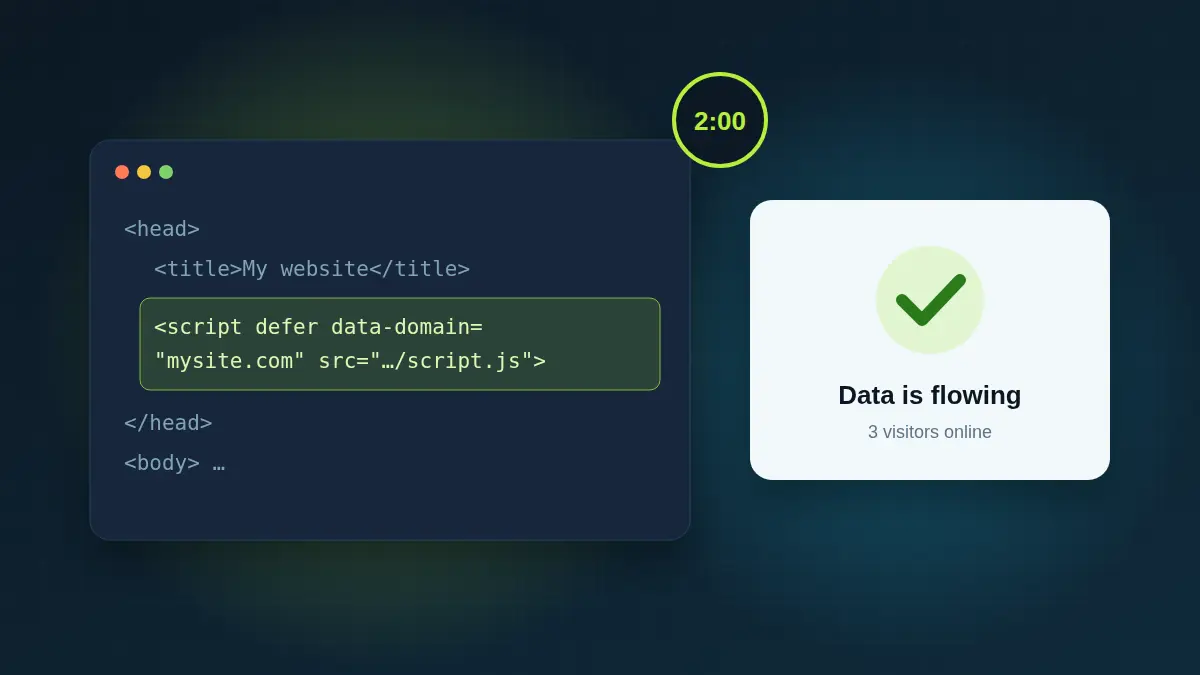
StaTrak shows you a snippet with your domain already filled in. Paste it inside the <head> section of your site, ideally in a template that every page uses:
<script defer data-domain="mysite.com" src="https://statrak.com/js/script.js"></script>- Plain HTML: add it to the <head> of each page, or to your shared header include.
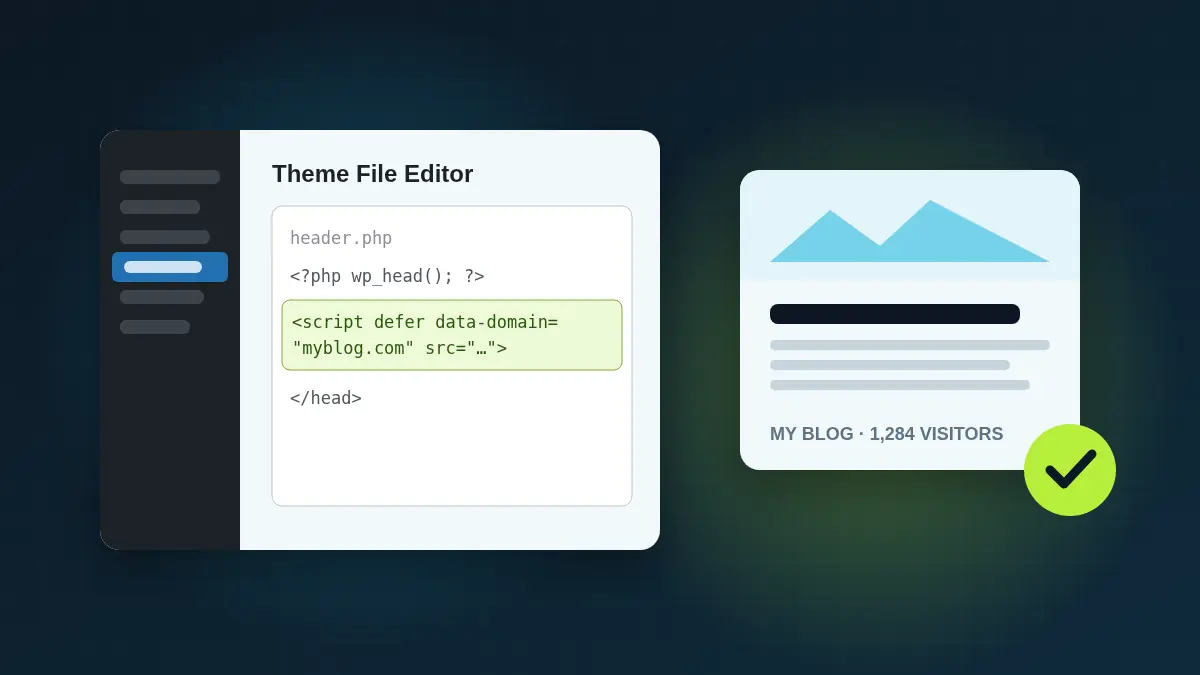
- WordPress: Appearance → Theme File Editor → header.php, or any header-scripts plugin.
- Shopify: Online Store → Themes → Edit code → theme.liquid.
- Webflow, Squarespace, Wix: site settings → custom code → head.
- Next.js, React, Vue: add it to your root layout or index.html. Route changes are tracked automatically.
Step 4: Publish and visit your site
Publish your changes, then open your website in a normal browser window. Back in StaTrak, the site's dashboard switches from "Waiting for the first pageview" to a live report within seconds.
What you'll notice on your site
Visitors see no cookie prompt and no pop-up. The only visible change is a small "Analytics by StaTrak" link in your footer, which is how StaTrak stays free. It uses your footer's text colour, and you can choose where it sits by adding <div data-statrak-badge></div> to your page.
What to look at first
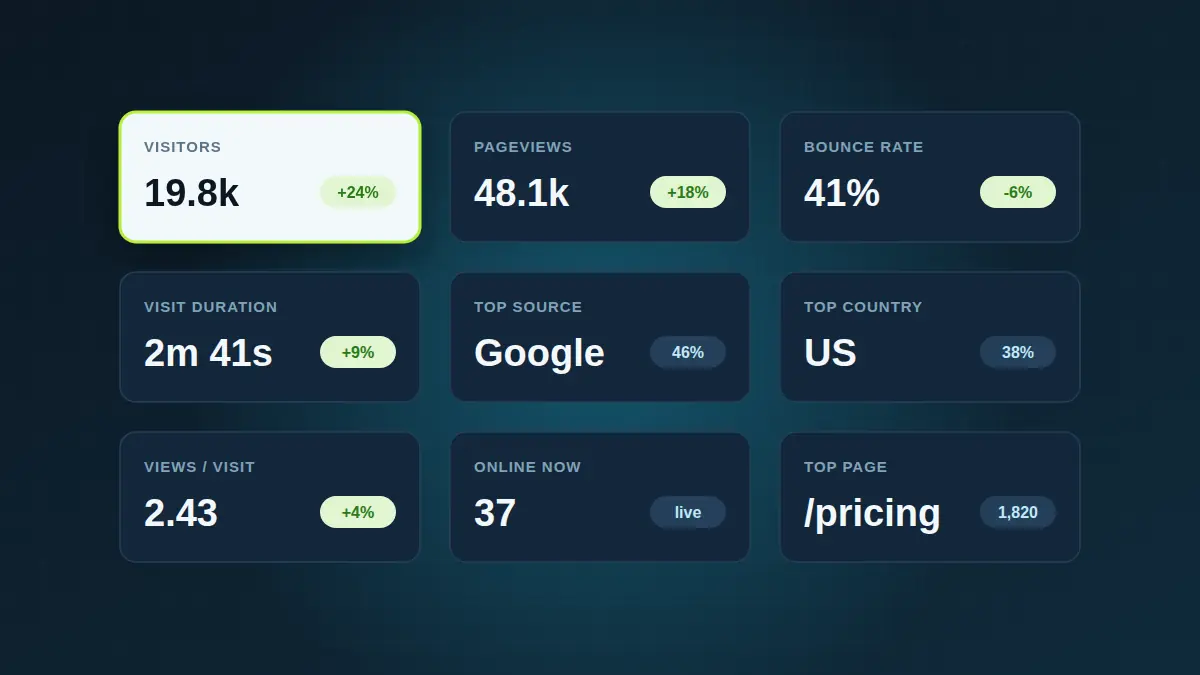
- Unique visitors and pageviews for the last 7 days, to get a baseline.
- Top pages, to see what people actually read.
- Sources, to see which channels bring visitors in.
- Countries, to check you're reaching the audience you expect.
That's it. There are no reports to build. Check back weekly, and connect Google Search Console when you want to see the search keywords behind your traffic.