SEO · 5 min read
How to see which keywords bring visitors to your site, without cookies
Search engines hide keywords from referrers. Here's how to connect Search Console data to privacy-first analytics to see the queries behind your traffic.
By the StaTrak team ·
Years ago, the search query appeared in the referrer URL, and every analytics tool could show you the exact words people typed. Search engines then switched to encrypted search and stripped the query, which is why many reports say "(not provided)".
The keyword data still exists. It just lives with the search engine, and you can get it there in aggregate, which fits privacy-first analytics well.
Where keyword data comes from
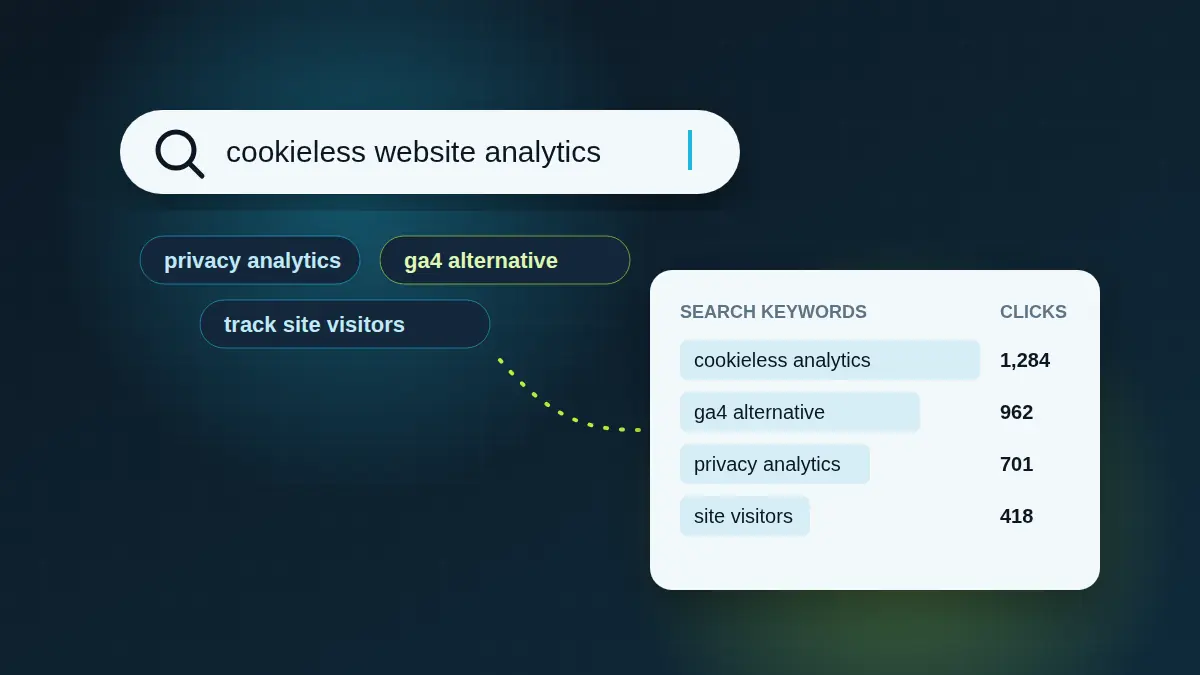
Google Search Console and Bing Webmaster Tools both report the queries your pages appeared for, with clicks, impressions, click-through rate and average position. These are aggregated counts, not individual searches, so no personal data changes hands.
Connecting it to StaTrak
- Verify your domain in Google Search Console if you haven't already.
- Open your site in StaTrak, go to Site settings, then Integrations, and choose Connect Search Console.
- Pick the matching property. Keyword data appears in the Search keywords panel, alongside your pages and sources.
Reading the numbers
- Clicks: how many searchers clicked through to your site for that query.
- Impressions: how often your page appeared in results.
- CTR: clicks divided by impressions. A low CTR on a high-impression query is often a title or description problem.
- Position: your average ranking. Queries sitting at positions 5 to 15 are usually the quickest wins.
Pair keywords with on-site behaviour
Keywords tell you why people arrived. Your page report shows what they did next: how long they stayed and whether they left right away. Together they show which content meets search intent and which only ranks.